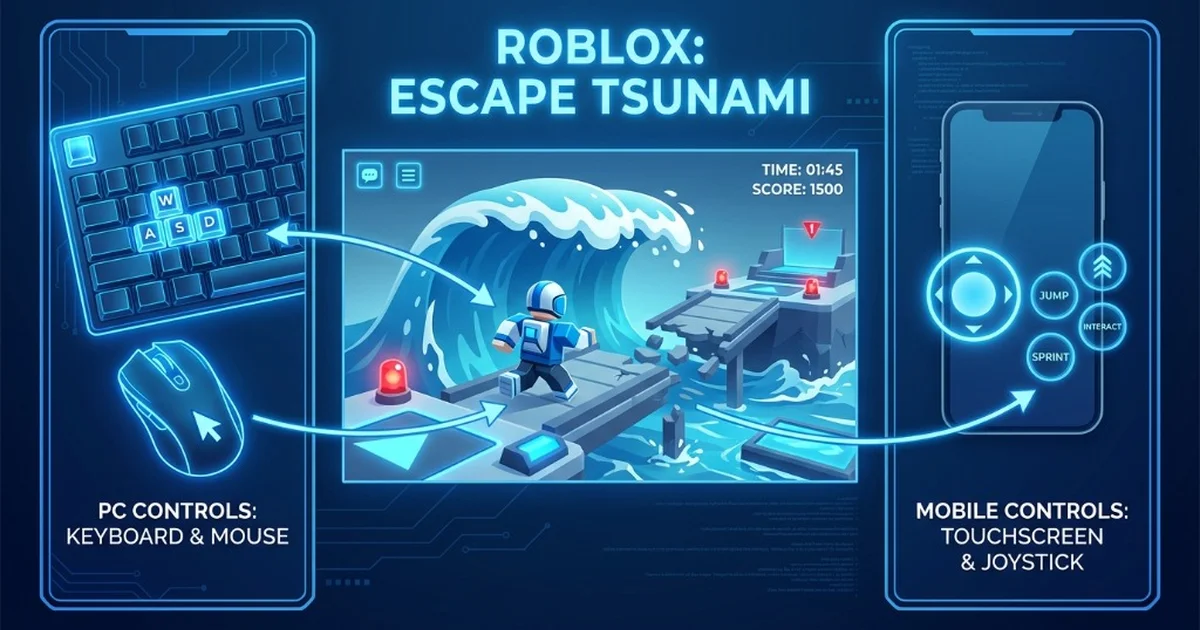
New to the game and fumbling with controls? Or maybe you’re a mobile player wondering if it’s even possible to compete with PC players? Either way, this guide has you covered.
Let’s go through every control scheme and some settings tweaks that’ll make your life easier.
PC Controls
If you’re playing on desktop, here’s your full control scheme:
Movement
| Key | What It Does |
|---|---|
| W | Move forward |
| A | Strafe left |
| S | Move backward |
| D | Strafe right |
| Space | Jump |
| Shift | Sprint/Run faster |
Camera & Interaction
| Key | What It Does |
|---|---|
| Mouse | Look around |
| Left Click | Interact / Pick up brainrots / Press buttons |
| Right Click (hold) | Rotate camera without moving |
| Scroll Wheel | Zoom in/out |
Game Actions
| Key | What It Does |
|---|---|
| E | Use items (when available) |
| R | Rebirth (when unlocked and eligible) |
| F | Sell brainrots (at sell area) |
Menus
| Key | What It Does |
|---|---|
| Esc | Pause/Settings menu |
| Tab | Leaderboard |
Mobile Controls
Playing on phone or tablet? Here’s how it works:
Touch Controls
| Action | How To Do It |
|---|---|
| Move | Virtual joystick (left side of screen) |
| Look around | Swipe/drag (right side of screen) |
| Jump | Jump button |
| Run | Run button (or auto-run in settings) |
| Pick up brainrots | Tap on them |
| Interact with shops | Tap buttons |
| Open menus | Menu button (usually top-right) |
Mobile Tips
Camera control: The biggest struggle for mobile players is looking around while moving. Try this:
- Left thumb on joystick
- Right thumb for looking
- Practice keeping both moving smoothly
Enable auto-run: Found in settings. Helps a lot when you just need to go straight.
Lower graphics: Mobile devices heat up fast. Turn down graphics quality for smoother gameplay and longer battery life.
Controller Support (Xbox/PlayStation)
Yes, you can use a controller! Here’s the mapping:
| Button | Action |
|---|---|
| Left Stick | Movement |
| Right Stick | Camera |
| A / X | Jump |
| X / Square | Interact |
| Y / Triangle | Sell (at sell area) |
| RB / R1 | Sprint |
| Menu / Options | Pause |
| D-pad | Navigate menus |
Controller tip: Controllers work great for movement, but can feel slower for menu navigation. Some players use controller for gameplay and switch to mouse for buying upgrades.
Settings for Better Performance
Graphics Settings
Open your Roblox settings (Esc → Settings):
| Setting | Recommended |
|---|---|
| Graphics Quality | 4-6 (lower if laggy) |
| Shadows | Off (helps performance) |
| Rendering Mode | Auto |
Why lower graphics? Every frame counts when a red tsunami is chasing you. Smooth gameplay > pretty graphics.
Camera Settings
| Setting | Recommended |
|---|---|
| Camera Mode | Classic |
| Camera Sensitivity | 0.4-0.6 (personal preference) |
| Shift Lock | Enable (optional but useful) |
| Camera Inverted | Personal preference |
What’s Shift Lock? It keeps your camera fixed behind your character. Useful for tsunamis because you can see what’s coming behind you while running forward.
Mobile-Specific Settings
| Setting | Recommendation |
|---|---|
| Reduce Motion | On (if experiencing lag) |
| Graphics Quality | 3-5 |
| Auto-rotate | Enable |
| Haptics/Vibration | Personal preference (off saves battery) |
Common Control Issues & Fixes
“My character won’t move”
Cause: Game window lost focus (you clicked outside Roblox)
Fix: Click anywhere in the game window
“Camera is stuck/not responding”
Cause: Shift Lock got toggled or first-person mode activated
Fix: Press Shift to toggle Shift Lock, or press I to toggle first-person view
“Controls feel laggy/delayed”
Causes:
- High graphics settings
- Network lag
- Too many players on server
Fixes:
- Lower graphics quality
- Check your internet connection
- Try a less crowded server or private server
“Mobile joystick disappeared”
Cause: UI glitch
Fix: Leave and rejoin the game
“Controller not working”
Cause: Roblox might not have detected controller
Fix:
- Plug in controller before launching Roblox
- Check controller works in other games
- Restart Roblox with controller connected
Pro Control Tips
1. Keyboard players - use Shift Lock Lets you strafe while looking backward. Essential for watching tsunamis while running to trenches.
2. Mobile players - two-thumb technique Don’t tap around with one finger. Use both thumbs like a controller for much better control.
3. Rebind if you can Through Roblox settings, you can customize some keybinds. If something feels off, change it.
4. Sound is a control Not a button, but turn your sound on. The tsunami warning audio is often faster than seeing the wave visually.
5. Practice camera control during safe times When you’re just running around Common zone, practice looking behind you while moving forward. Muscle memory helps when it matters.
PC vs Mobile - Honest Comparison
| Aspect | PC | Mobile |
|---|---|---|
| Precision | Better | Okay |
| Camera control | Much easier | Takes practice |
| Speed | Faster reactions | Slight delay |
| Convenience | Need PC | Play anywhere |
| Battery/heat | Not an issue | Can be a problem |
Bottom line: PC has advantages, but plenty of players succeed on mobile. It’s about adapting to your platform.
Quick Reference Card
PC Essentials:
- WASD + Mouse = Move + Look
- Space = Jump
- Click = Interact
- Shift = Sprint
Mobile Essentials:
- Left thumb = Move
- Right thumb = Look
- Taps = Interact
That’s everything you need to know about controls. Now get out there and start farming!
New to the game? Check these:
- Beginner’s Guide - Full tutorial
- Survival Guide - Don’t die to waves
- Tips & Tricks - Gameplay tips